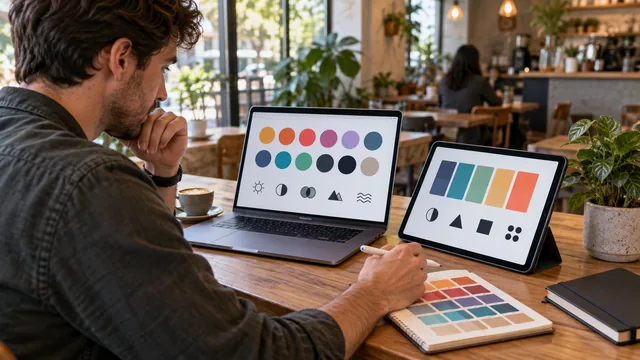
Canva is where a great many palettes end up being used, but Canva's own color suggestions are broad by design — they are built to be safe for everyone rather than right for you. Pairing a dedicated palette generator with Canva gives you deliberate, reusable colors instead of one-off picks. The trick is moving colors across without them shifting on the way.
Key takeaways
- Build the palette outside Canva first, so you are judging color rather than layout.
- Move colors as hex codes only — never re-pick a color by eye inside the wheel.
- Save the set as brand colors so every future design starts from the same place.
- Keep a plain-text backup that outlives any single tool.
Build the palette first
Start in the generator, not in Canva. Lock your brand anchor, choose a harmony rule, and settle on four or five colors. Doing this outside the layout tool keeps you focused on the palette itself rather than on the poster you will eventually apply it to — and it stops the design from quietly dictating the colors, which is how brand palettes drift one campaign at a time.
Copy exact hex values
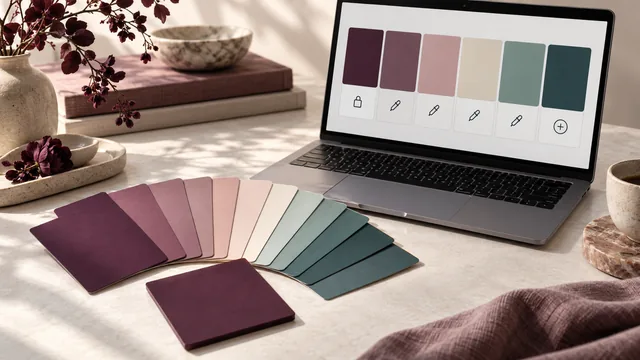
One rule prevents almost all drift: always move colors as hex codes, never by eye. Each swatch in the generator copies its exact hex to your clipboard on click, and the Copy all button grabs the whole set at once. Those six characters are the source of truth, and they are the only part of this workflow worth being pedantic about.
Never re-pick a color inside Canva's wheel to "match" a generated one. The eye is unreliable at this scale, and you will end up with two nearly identical colors that quietly fight each other across a campaign.
Add them as brand colors
In Canva, open the color panel, choose to add a new color, and paste the hex value into the input field. Repeat for each color in the palette. If you have Canva's brand features available, save the set to a brand kit so every future design opens with the same colors already in reach — that convenience is what actually keeps a team consistent, far more than any written guideline.
Assign roles before you design
A brand kit is a list, not a system. Decide which color is the background, which is the accent used for buttons and headlines, and which two are supporting. Write those roles into the color names if the tool allows it. Templates built with roles in mind survive a color change; templates built by picking whichever swatch looked good that day do not.
Keep a plain-text backup
Tools change and brand kits get lost with accounts. Paste your palette into a plain note as a simple list:
Primary   #8B2D55
Accent    #FFA8C2
Ink       #28151F
Surface   #FFF9FB
Support   #6E2143
This portable list works in any tool, not just Canva, and it takes seconds to recreate an entire brand kit from it — including in the tool you migrate to in two years.
Test before you publish
Canva will happily let you place light text on a light background. Before exporting, run your text-and-background pairs through the contrast checker. A palette that reads well as a row of swatches can still fail once it is carrying real words at a real size, and social graphics are usually viewed small on a bright phone screen.
Build a template, not just a palette
Colors drift fastest in social content, because each post is made in a hurry. The fix is to spend the palette once and reuse it structurally: build two or three master templates — a quote card, an announcement, a carousel slide — with the roles already applied, then duplicate those rather than starting from a blank canvas. New content inherits correct color automatically, and the person making a post on a deadline never has to make a color decision. This is the same principle as design tokens in code, applied to a tool that has no token system: the consistency comes from what is easiest to reach for.
Frequently asked questions
Can Canva generate palettes on its own?
It offers suggestions and can pull colors from an uploaded image, but it gives you far less control over harmony rules and locking than a dedicated generator does.
How many brand colors should I save?
Five or six, including one near-white and one near-black. Longer lists slow people down and invite inconsistent choices.
Do exported files preserve exact colors?
PNG and PDF exports preserve the hex values you entered. Colors only shift when someone re-picks them inside the editor, which is why the hex rule matters.
The same discipline applies to every layout tool — see getting a palette into Figma and other design tools.